

- Reports & Analytics
- SharpSpring Module
Track and Analyze everything from email campaigns, to social media, demand generation, lead life-cycle, and more
Data and Insights-driven businesses are clocking more than 30% growth each year, and by 2021, they will take $1.8 trillion annually from their less-informed peers. That’s the power of data analytics and marketing analytics – for any business activity from marketing to operations.
Any sales and marketing activity can become a shoot in the dark if you don’t have comprehensive reporting and campaign tracking setup customized according to what you need to measure, analyze, and take action on. Reports and Analytics help you get measurable results and optimize marketing campaigns and sales activities across marketing channels with your marketing automation. Many people get heavily invested in website analytics rather than focusing on how their marketing and sales efforts performing overall.
SharpSpring closes these gaps with it’s integrated website analytics, marketing analytics, and sales tracking with the multi-attribution approach to provide a panoramic view of your business development efforts. In addition to out-of-the-box analytics, you can also create, analyze, and manage custom reports that streamline with your business goals and marketing efforts. These capabilities not only optimize your overall sales and marketing activities and spending but also enable you to work efficiently with increased productivity.
- Enhance your customer interactions with data-driven marketing automation
- See which marketing channels are working and which aren’t?
- Cross-channel reporting with easy and impactful insights
- Effectively utilizing full-funnel marketing with informed decisions
- Sales Revenue analysis
- Cost Per Conversion (CPC) analysis
- ROI monitoring and optimization
- Overall reach and conversion dynamics and much more
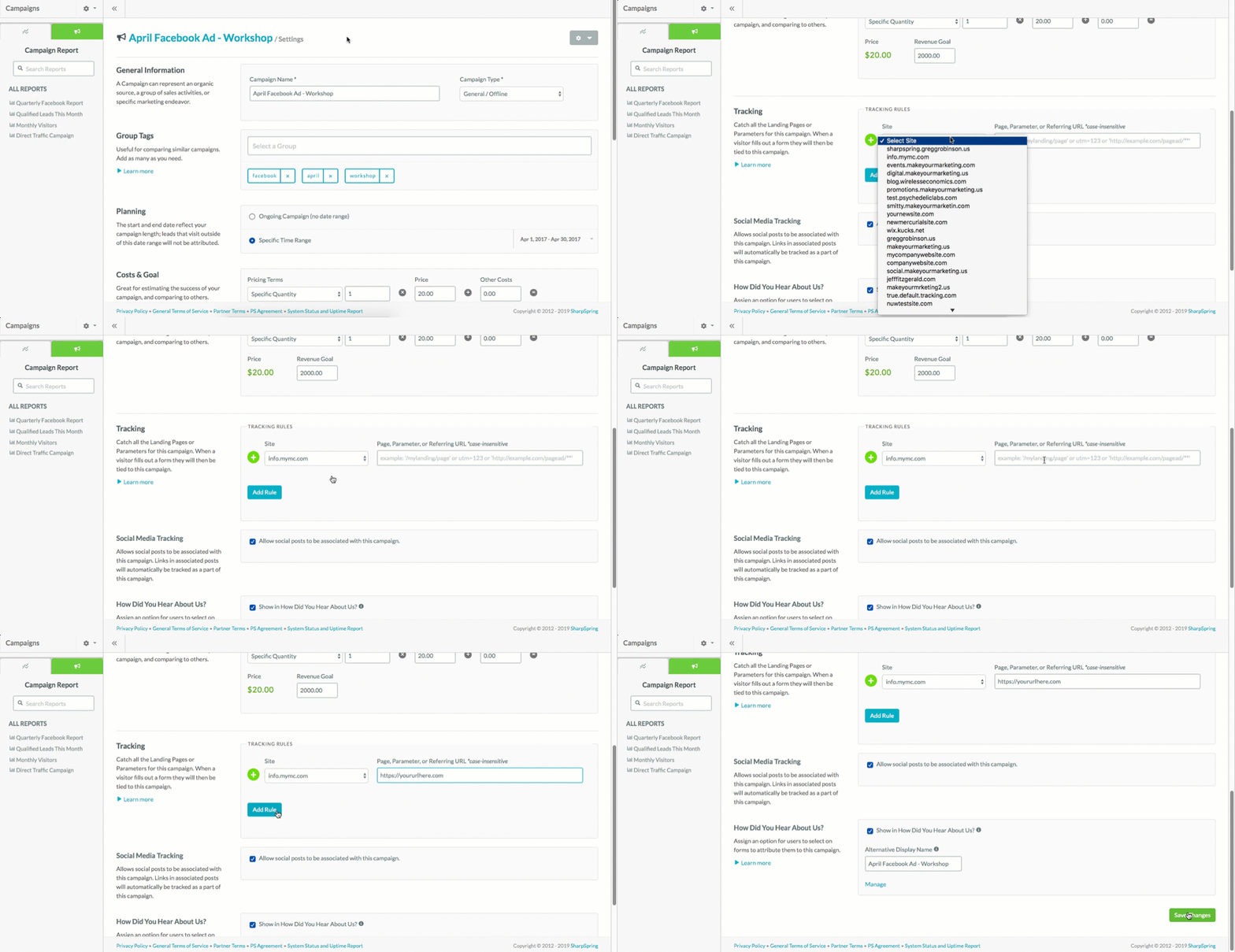
Campaign Tracking & Reporting
- Referral URLs
- Landing pages
- Urchin Traffic Module (UTM) parameters
Tracking Campaigns with UTM Parameters
- In SharpSpring’s top toolbar, go to Analytics > Campaigns.
- Click Options > Manage Campaigns. in the left panel.
- Select the desired campaign and click Options > Edit Campaign.
- Go to the Tracking section and select the site from the Site drop-down menu.
- In the Page, Parameter, or Referring URL field, input your unique UTM parameter without a question mark.
- Click Add Rule and Save Changes.
Web Analytics
- Organic Search
- Referrals (specific websites/search sites)
- Social Media
- Email Marketing
- Paid Search
- Direct Traffic
- In SharpSpring’s top toolbar, click Analytics > Traffic Sources.
- Select the date range and then select a specific website under All Sites.
- Under All Traffic, choose an option:
- All Traffic
- New Visitor Traffic
- Returning Visitor Traffic
- Click All Sources and Select one of the following:
- Organic Search
- Referrals
- Social Media
- Email Marketing
- Paid Search
- Direct Traffic
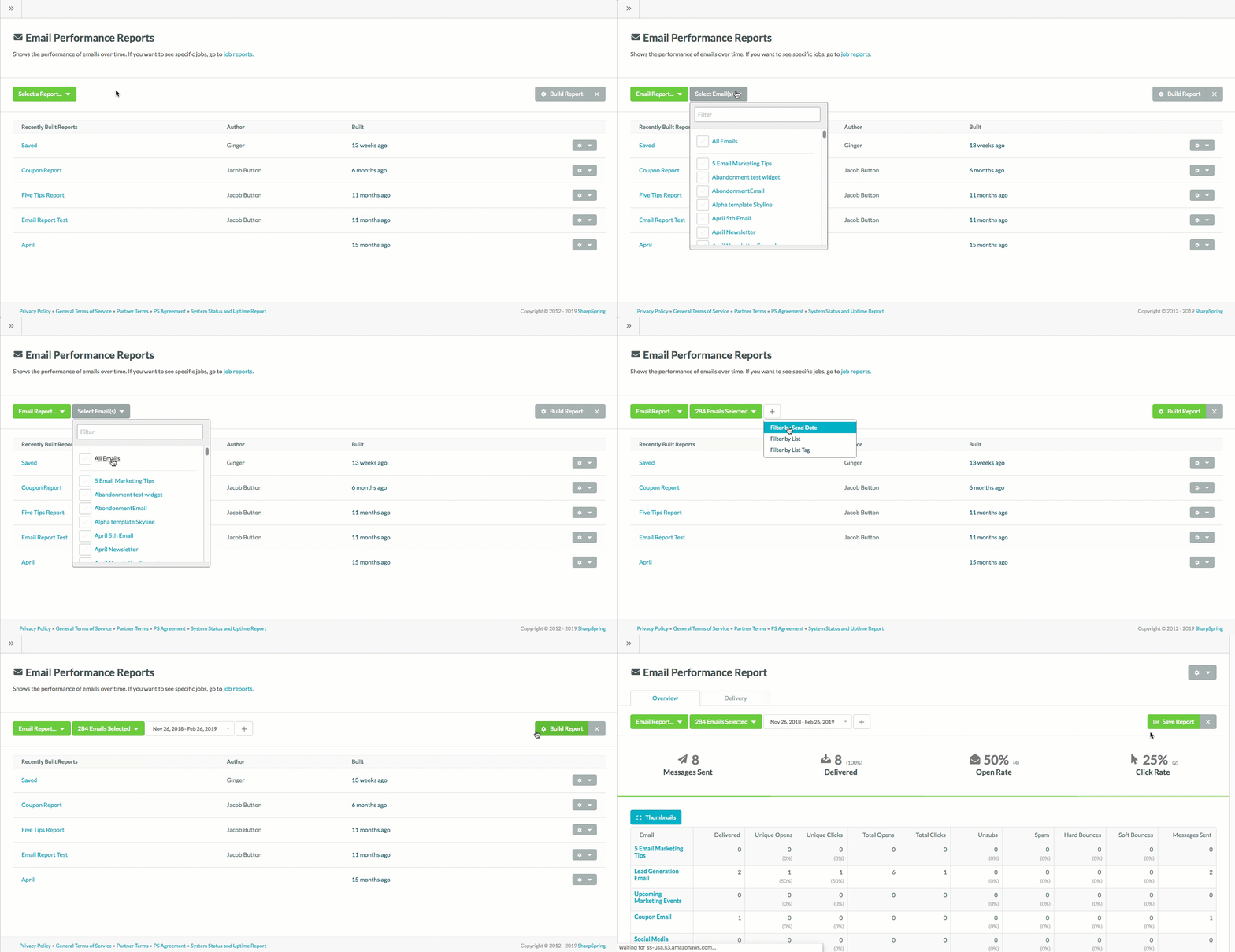
Email Reports
- Delivered Emails
- Unique Opens
- Unique Clicks
- Total Clicks
- Unsubscribes
- Spam Complaints
- Hard Bounces
- Soft Bounces
- Messages Sent
- In the top toolbar in SharpSpring, go to Analytics > Email Reports.
- Click the Select a Report.
- In the drop-down select Email Report.
- Click Select Email(s).
- Click the checkboxes next to the desired email(s).
- You can apply filters as well.
- Click Build Report.
- In the top toolbar in SharpSpring, go to Analytics > Email Reports.
- Click the Select a Report.
- In the drop-down select Emails in an action group.
- Click Select an Action Group.
- In the drop-down menu enter the desired action group.
- You can apply filters as well.
- Click Build Report.
Latest Addition: Custom Reports
- Editing Reports
- Searching Reports
- Setting Filters
- Scheduling Reports
- Exporting Reports
- Exporting Widgets
- Copying Reports
- Deleting Reports
- Requesting Widgets
- Changing Themes
How THE RiCH.agency Can Help You Implement SharpSpring?
SCHEDULE A STRATEGY MEETING - IT'S FREE
Or Call us: +800-815-1522